What Steve AI is
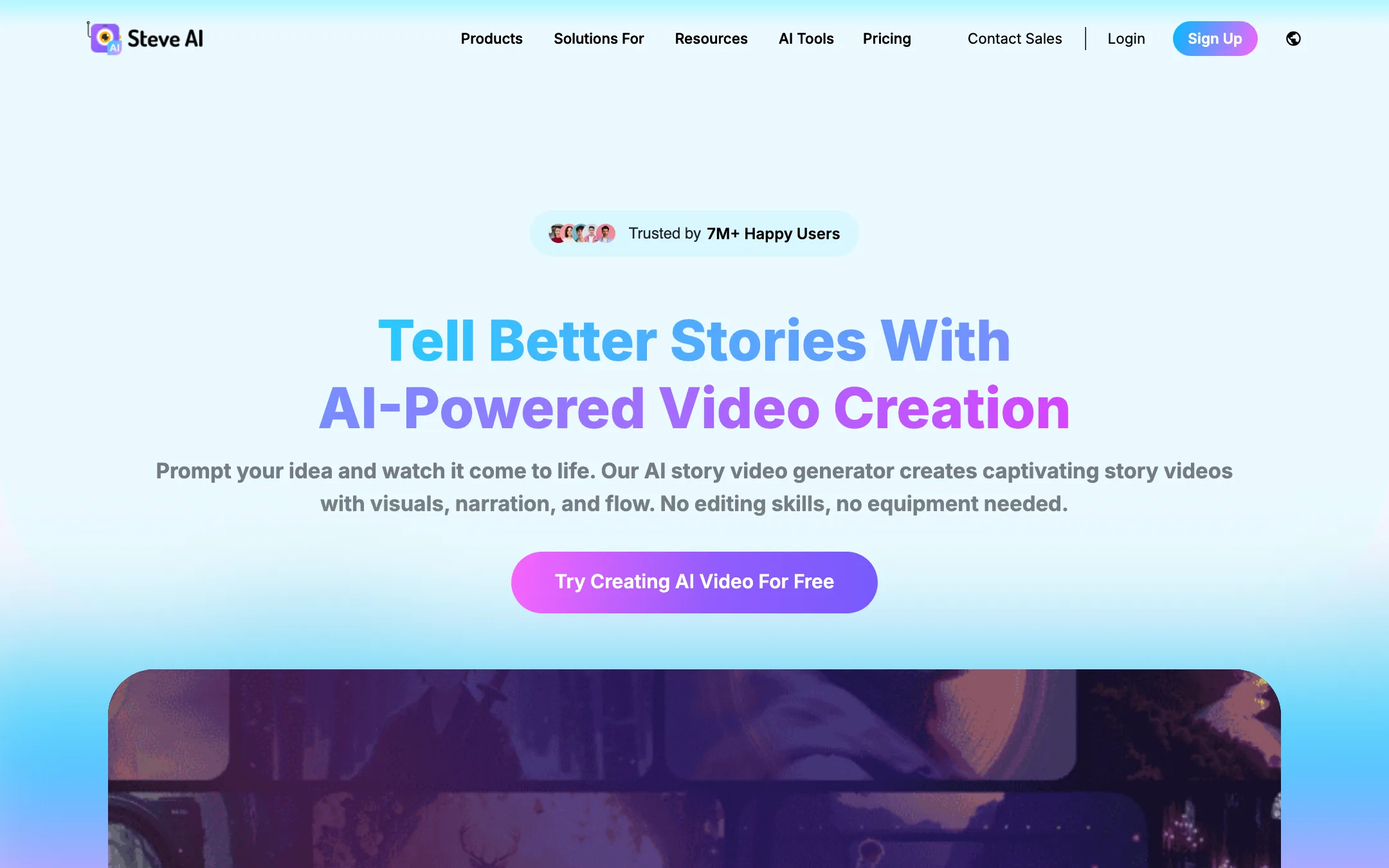
Steve AI is a script-to-video studio. You give it a prompt, a script, a blog link, an audio file or an image, and it builds a full video with scenes, visuals, narration, music and text. It comes from the same company as Animaker, the animated video maker.
Steve AI calls itself a “patented” AI video platform and says it has 7 million users. Those are its own claims. What is clear from the product pages is the range. One project can come out as a 2D animation, a stock-footage “live” video, a talking-head avatar video or a generative AI video made with third-party models.
A note on where we list it. Steve AI often shows up next to avatar tools like Synthesia, and it does have animated talking-head avatars. But its homepage and pricing are built around text, prompt and audio to video. That is why we file it under text-to-video, with a cross-listing in avatars. It is a different kind of product from a photoreal presenter tool.
Who it is for
Steve AI fits you if:
- You run a faceless YouTube channel and need a steady stream of narrated videos.
- You teach and want animated explainers from lesson notes.
- You market a small business and want to turn blog posts into social videos.
- You want one tool that does animation, stock video and some generative AI, instead of three.
- You are new to video and want the AI to make most of the decisions.
Skip it if:
- You want cinematic generative footage in volume. Starter and Pro only include 2 minutes of generative credits a month.
- You need a photoreal human presenter. Synthesia and D-ID focus on that.
- You want fine control over every frame. Steve AI is built to automate, and you edit at the scene level.
How it works
Steve AI’s flow is “describe it, then adjust it.” The AI writes or adapts a script, splits it into scenes, picks visuals and adds voice and music. You then tweak scenes before you render.
Inputs
Steve AI lists these ways in:
- Prompt to video: describe an idea. Steve AI says it builds a script and then the video, so you do not start from a blank page.
- Script to video: paste your own script.
- Blog or URL to video: repurpose an article or news piece.
- Audio to video: turn a podcast or voice recording into a visual video.
- Image to video: animate a still with motion effects.
Styles
Steve AI says it offers 7+ output styles. The main families are:
- Animation: 2D scenes with Steve AI’s library of 300+ animated characters.
- Live: stock footage and images, drawn from what Steve AI describes as 140M+ Getty assets.
- Talking head: animated 2D avatars that present your script.
- Generative AI: clips created by generative video models. Steve AI’s use-case pages name Google Veo 3, Kling and Nano Banana, and its comparison table says it gives “easy access to the latest generative APIs and models in one place.”
A typical run
- Pick an input type and paste your prompt, script, link or audio.
- Choose a style and aspect ratio for where the video will live.
- Review the scene breakdown. Steve AI says you can edit scene descriptions before rendering and swap or reorder whole scenes.
- Choose voices. Multi-voice mode assigns different AI voices to different speakers for dialogue or UGC-style ads.
- Add motion effects, kinetic text, music and your fonts.
- Render and download, or publish.
Extra tools
- ClipMaker turns a tweet, image or blog into a short animated clip.
- AI motion effects add zooms, camera moves and motion trails to static visuals.
- Video translator covers 10+ languages per the homepage.
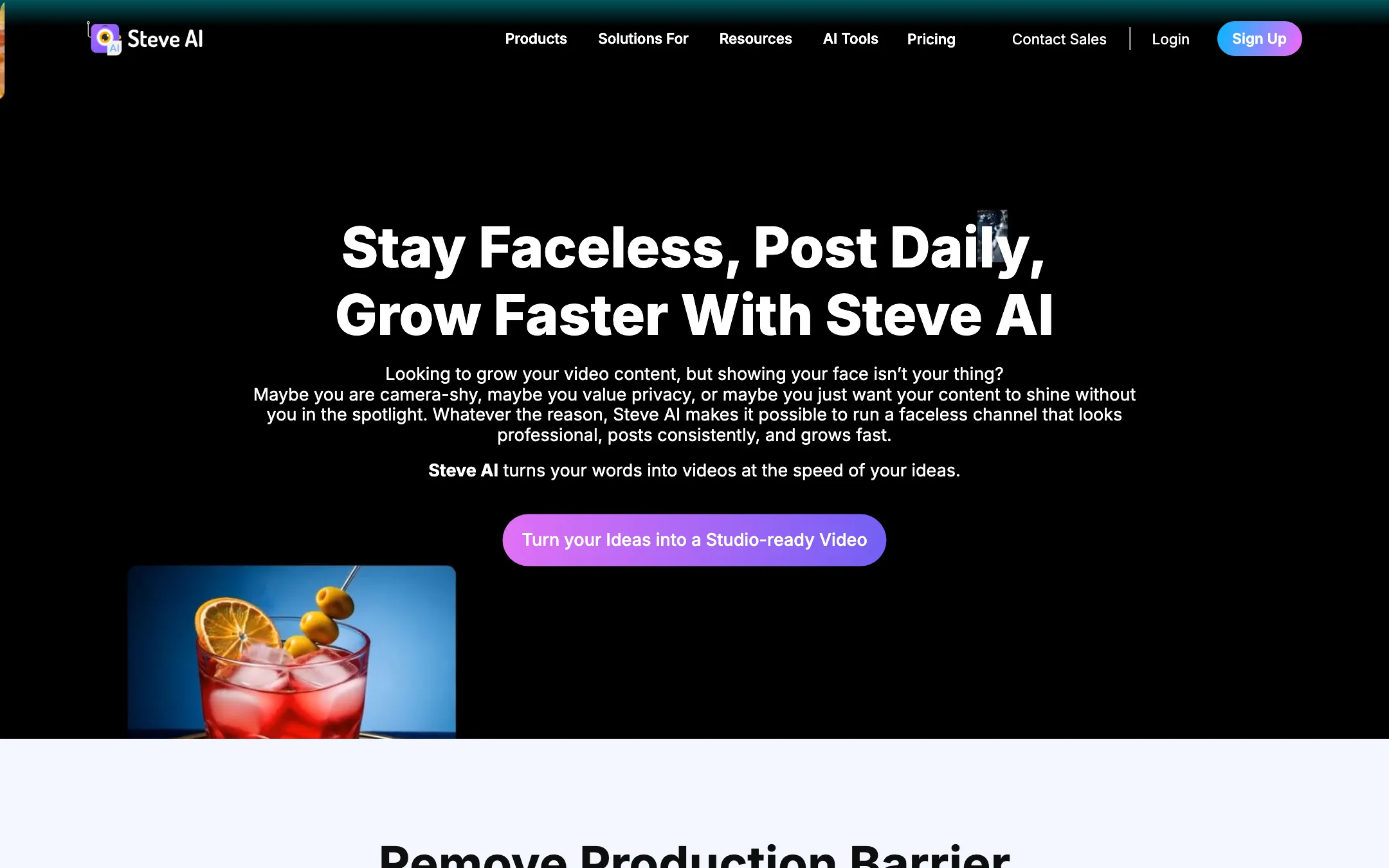
- YouTube automation pages pitch Steve AI as a pipeline for faceless channels.
Output quality
We have not rendered Steve AI videos for this review, so we cannot rate the output from our own tests. A few honest expectations based on how the product is built:
- Animated and stock styles are assembled, not generated. They combine characters, stock clips and templates. This is fast and cheap, and it can look template-driven. It is the same trade-off you get with Animaker and other template tools.
- Generative AI style depends on the model. When Steve AI uses third-party models, quality follows those models, and so do their limits on length and consistency.
- Resolution depends on plan. Starter exports at 1080p, Pro and Generative AI at 2K, and Enterprise at 4K. Steve AI’s features page markets 4K, but the plan cards only list 4K on Enterprise.
- Voices are graded by plan. The pricing page labels Starter as “Up to 90% human-like voices” and Pro as “95%”, while the homepage version of the Pro card says 100%. Treat these percentages as marketing labels, not measurements.
Use the free plan’s 20 minutes to make the exact kind of video you need before paying.
Pricing
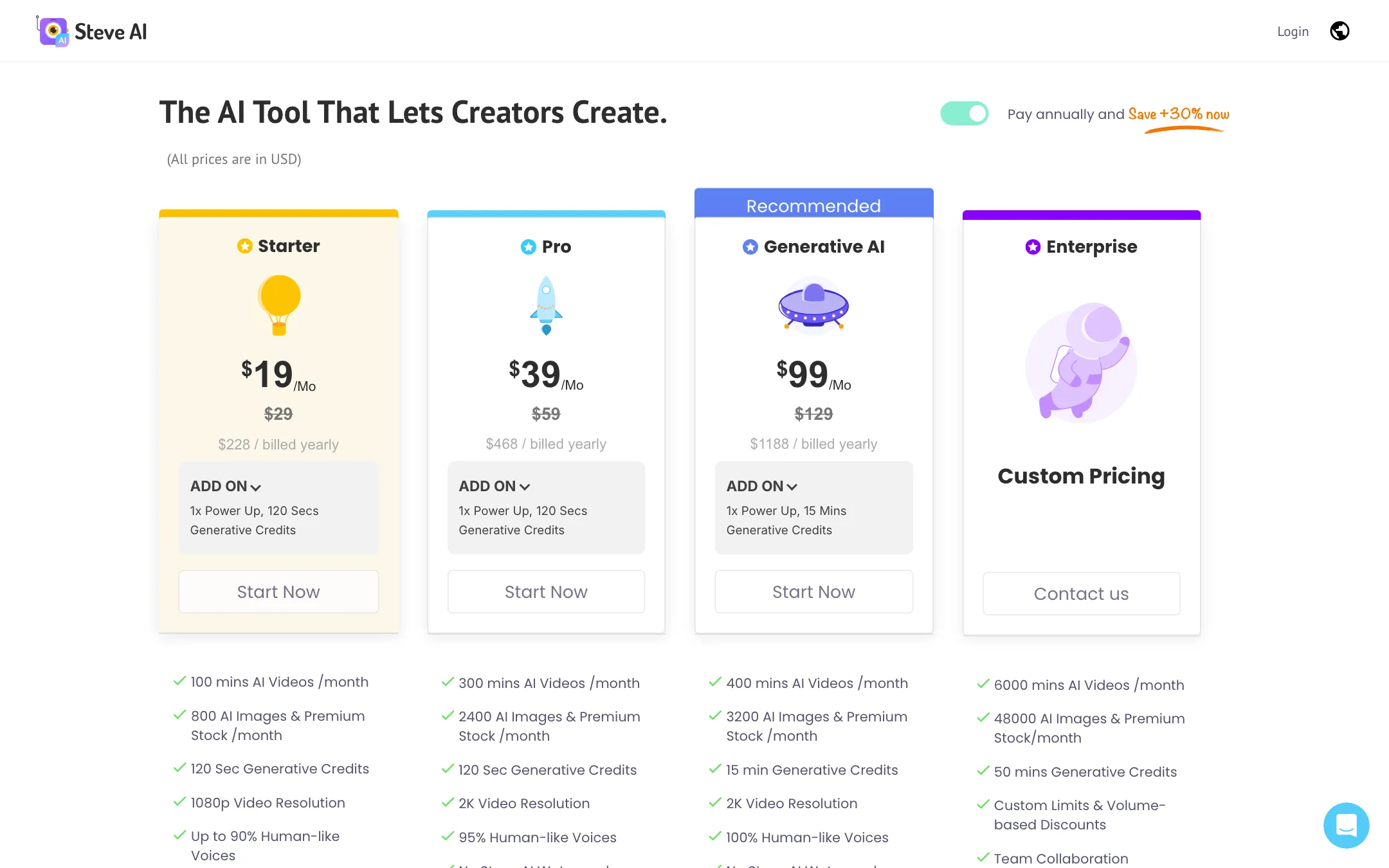
Prices below were checked on 2026-10-19 on Steve AI’s pricing page. All prices are in USD.
| Plan | Price | What you get |
|---|---|---|
| Free | $0 | 1,200 sec of AI video, 200 credits for AI and stock media |
| Starter | $19/mo yearly, $29 monthly | 100 min AI video a month, 800 images/stock, 120 sec generative, 1080p |
| Pro | $39/mo yearly, $59 monthly | 300 min AI video a month, 2,400 images/stock, 120 sec generative, 2K |
| Generative AI | $99/mo yearly, $129 monthly | 400 min AI video a month, 3,200 images/stock, 15 min generative, 2K |
| Enterprise | Custom | 6,000 min AI video, 50 min generative, 4K, teams, reselling rights |
Each paid plan also lists an add-on called a “power up” with extra generative credits, and Steve AI mentions “FlexiCredits” for buying generative credits, power-ups or premium assets as you need them.
What the pricing page does not make obvious
- Minutes are not generative minutes. The headline “100 mins AI Videos” on Starter is for assembled videos. True generative footage is the separate “120 Sec Generative Credits” line. If generative AI is why you are here, look at the $99 plan.
- Starter and Pro have the same generative allowance. Pro gets more video minutes, more stock and 2K, but still 120 seconds of generative credits.
- Commercial and reselling rights are listed on Enterprise. Check the terms for what lower plans allow before running ads.
- Yearly billing is a big discount. Starter drops from $29 to $19 a month, about a third off.
Getting the most from Steve AI
Steve AI does a lot automatically, which is the point. A few habits help you spend your minutes well:
- Give it a real script when you can. Prompt-to-video is handy, but a script you wrote yourself gives you control over facts, tone and length. Paste it in and let Steve AI handle visuals.
- Pick the style before you polish. Changing from animation to stock or generative later can reshuffle scenes. Decide on the look first, then edit scene by scene.
- Edit scene descriptions, not just the final video. Steve AI says you can tweak scene descriptions before rendering. Fixing a scene there is cheaper than re-rendering the whole video.
- Save generative credits for hero shots. With 120 seconds a month on Starter and Pro, use generative footage for an opening hook or a key moment, and let stock or animation carry the rest.
- Use multi-voice for dialogue. If your script has two speakers, assign different voices. It makes explainers and UGC-style ads easier to follow.
- Match the aspect ratio to the platform. Build a vertical version for Shorts and Reels rather than cropping a landscape video afterwards.
How it compares
Steve AI sits between template video makers and AI generators.
- Against Animaker, its sister product, Steve AI is more automated. Animaker gives you a manual animation editor. Steve AI starts from text and builds the video for you.
- Against avatar tools like Synthesia and D-ID, Steve AI’s avatars are animated 2D characters, not photoreal presenters. It is cheaper for volume but less suited to corporate training that needs a human face.
- Against pure text-to-video generators like PixVerse, Steve AI makes full narrated videos with many scenes, while generators make short clips. Generators win on raw generative footage. Steve AI wins on finished, structured videos.
Verdict
Steve AI is a solid pick if you want lots of narrated videos from text with little effort. It covers more styles than most rivals, the free plan lets you test the full flow, and Starter’s 100 minutes a month is a lot of video for $19.
Be clear about what you are buying. Most of those minutes are animated or stock-based videos, not generative AI footage. If you want cinematic AI clips, the $99 Generative AI plan or a dedicated generator is the real comparison. If you want a photoreal presenter, look at Synthesia or D-ID instead.